How-To...
Articles on using lasqueti.ca
Our community website is a big place! Between photo galleries, events calendar, classified ads, discussion forums, announcements, blogs... - the range of tools and capabilities can be a bit overwhelming at first. The best advice I can offer is to start small, with a few simple tasks most useful for you, and then add new ones as you become more comfortable.
This e-book offers a series of "How-to" articles to help you get started! Just select the topic you need help with below, or browse through the book to get an idea of what's possible - use the forward and back "navigation" links at the bottom of each page.
Don't see what you're looking for?
- Post your request in the Questions and Advice forum - the answer might even get "published" back to this book for others! See the How-To article on using the Discussion Forums...
Want to help out? Learn something useful? Please share...
- you can leave a comment on an existing page to add some details or clarification - see the How-To article on posting comments...
- Or become a "Contributor" so that you can add whole new pages to this book - see the How-To article on becoming a site Contributor.
Access Content
How-to find what you're looking for
Finding what you're looking for shouldn't be a chore, but it's a real challenge to organise all of the information relevant to our community so that everything is at your fingertips! Fortunately, lasqueti.ca provides a suite of tools to help.
Site Navigation
- The site is super "hyper-linked" - related content is linked together wherever possible, so there are lots and lots of ways to get to the same piece of content. The basic rule is: If its Blue, you can Click Thru!
- Site pages are primarily organized on a set of tabs, located along the top-right of each page. These provide access to the main themes of the website. On each tab you'll find a set of pages related to the tab's "theme".
- You can also access content using the "Quick Links" menu in the left side-bar. These links provide quick access to some of the most used features of the site. Each Quick Link will lead you to a "book" of related articles, or to a tool, like the Photo Browser or Message Board. If there is something missing - let the webmaster know (Contact)
- When you are logged in, you will also see your own "Personal Navigation Menu". This menu gives you access to the features reserved for community members. It also provides access to your account and all the content you have posted or manage on the site.
- As you browse around the site, context-sensitive menus will appear at the top of the left sidebar. These will provide extra options and navigation links to provide quick assess to pages in that area of the site.
- Most of the "Blocks" in the right sidebar provide links to new or relevant content, often related to what you are viewing on the current page. The Front Page blocks provide quick access to most of the new posts on the site.
- If you're feeling adventurous, try using the Search Bar in the top-right corner.
In these articles you'll find more detailed information about how to find out what's new on the site and how to get automatic e-mails whenever something is posted on the site that is of interest to you!
Articles needed for this How-To:
- Find new stuff - Recent Posts
- Subscriptions - get updates by e-mail
Create Content
How-to post to the website...
Lasqueti.ca allows anyone in the community to post content to the website. This makes the site more democratic - created and maintained by the whole community. It is worth spending a little time to learn about all the different ways you can post stuff - from classified ads to events to blogs, your contributions will be most useful and easier to publish if you select the right type of post.
Posting stuff to lasqueti.ca is easy - everything is done through your browser, using tools right on the website! See the articles below for instructions on how to post various types of content and how to use the editing and upload tools effectively...
Important Note: You must be logged-in to the website to post content.( -see How-To: Get More for more info.)
Articles needed for this How-To:
- Comments - your 2 cents
- Inserting images into your posts
Post a News Item
How-To post an Announcement or News Story
A 'News Item' can be used for any type of announcement to the Lasqueti Community. All news items are displayed in the "What's News" block on the front page of the website, with most recently posted news items listed at the top. A news item can also be associated with one of the broad topics on the site so it shows up in that area, and even associated with a particular page on the site - if that page has its own news block, then the news item will also show up on that page.
- Log-in (you must be logged in to post to the website)
- Post to Website... News or Event (from menu in left sidebar)
- Enter a Title for your news item - this will be listed in the What's News block.
- Optionally, you can set the "Topic" area for your news item, so your news shows up in that area of the website.
- Optionally, you can also 'tag' your news with any "Additional Subjects" - see How-To Tag Content.
- Optionally, you can select a date and/or time for your item to place it on the community calendar - see How-To Post an Event
- Enter the News Story itself in the Body field - enter whatever makes sense for your news. You can format your story using the simple web editor - see How-To Format Your Post
- Optionally, if you'd like your news item associated with a specific page on the site, select the page under "This news is related to...:". This will link the page to your news item, and if the page has a news block, the news item will show up on the page itself.
- Optionally, "Subscribe" to your news item so you will receive an e-mail if anyone comments on it.
- Press "Submit"
You should see your News Story in full. Notice there is an "Edit" tab at the top of the page - you can always return to the page and click on this tab to update or delete your news item. (You can also edit or delete any of your news items under "My Community.. My News") You should also see a link to your story at the top of the "What's News" block on the front page.
Post an Event to the Community Calendar
How-To post an Event to the Community Calendar
An 'Event is really just a 'News Item' - an announcement to the Lasqueti Community - with a specific date and or time. All events are displayed in the "What's News" block, when they are posted, and then in the "Upcoming Events" block as their date draws near. In addition, all events are displayed on the Community Events Calendar. An event can also be associated with a particular page on the site - if that page has its own events block, then the event will also show up on that page.
-
- Log-in (you must be logged in to post to the website)
- Post to Website... News or Event (from menu in left sidebar)
-
Enter a Title and Body to describe your Event
(See How-To Post a News Item for more detailed instructions on these steps)...
-
To appear on the Calendar, you must provide a Date. The date field is must be filled out exactly right to validate, so here are some detailed instructions:
- The "From Date" give the starting date / time for your event - always fill this one out
- The "To Date" gives the ending date / time for your event - just leave this blank for most events (it is mostly useful for multi-day events, like workshops).
-
The date must be entered EXACTLY like the example shown just below the date field - YYYY-MM-DD. E.g., 2011-01-31.
The date picker tool makes it easy - just select the date from the little pop-up calendar. -
The time is entered in 24hr notation. Eg. 16:00
Leave the time slot empty for "All Day" events.
- Press "Submit" - your Event will automatically show up in all the places it should (Upcoming Events, Community Calendar, any page associated with it, etc.)
You should see your new Event in full. Notice there is an "Edit" tab at the top of the page - you can always return to the page and click on this tab to update or delete your Event item. (You can also edit or delete any of your news or event items under "My Community.. My News") You should also see a link to your story at the top of the "What's News" block on the front page.
Post a Classified Ad
Lasqueti Craigslist?
The classified ads section of the site allows you post and browse ads for anything from "ride wanted" to "house for sale". New ads are displayed on the front page (What's News) and on the Community home page
How-To: Post a Classified Ad
- Log-in (you must be logged in to post to the website)
- Post to Website... Classified Ad entry
- Enter a Title for the ad (this is what shows when the ad is listed)
- Choose an appropriate "Category" for your ad so it's listed.
- Enter the "Ad Text" itself - anything you like. See How-To: Format your Posts for help with formatting if you want to get fancy.
- Press "Submit"
That's it.
Upload photos
Share your favorite photos of our island community!
Posting photos is easy, using tools right here on the website;
- Photos are uploaded directly from your PC;
- Every photo you upload is automatically added to your own personal photo album;
- Photos can also be added to other photo galleries on the site.
- Only "trusted users" are allowed to upload photos (- see How-To: Get More articles).
Step-by-Step : Post a Photo to the website:
- The photo should be on your PC (ensure you know where the file is!)
- Log-in to lasqueti.ca (you can only post content if you are logged in)
-
Select ->Post to Website... from your personal menu (- see How-To Navigate Site articles).
- select ->Photo from the sub-menu
- Enter a meaningful Title for your photo - the title appears with the photo whenever it is displayed.
-
From the list of "official" Photo Subjects, this will determine in which galleries your photo will appear.
You can include your photo in multiple galleries by holding the CTRL key while selecting. - Optionally, you can add Other Subjects to the photo by simply typing them in (see below)
-
Upload the Image file from your PC...
- choose the "Browse" button...
- select the image file from you PC, press Open or OK.
- you should see the path to your photo on your PC
- press the upload button - you should see a small version of your photo
- Add a title with information about the photo - shown when user puts the mouse over the image.
- Tick the "Display on Front Page" box if the photo is suitable for display on the front page (see below).
-
Enter a Description of the photo - this could be a story about the picture, details about its photographer, date take, or location, etc. Anything you'd like to share about the photo really.
This information will appear when someone views the photo details. - If you manage a page on the site with a "mini-gallery", you will see a drop-down list labelled "For more information, please see..." - select your page from the drop-down list to attach this photo to the page's mini-gallery.
-
Choose "Preview" if you'd like to review how your post will look on the site before submitting it.
Choose "Submit" to post your image to the site.
When you view the details of any of your own photos, you'll see that the page has "View" and "Edit" tabs. The View tab shows you what others will see when they look at your photo's details page. The Edit tab allows you to go back and change ANY of the information you entered above, or even delete the post to remove it from the site completely. You can ALWAYS edit your own posts on lasqueti.ca. So relax - mistakes happen, and you can fix them!
Guidelines for Photos on lasqueti.ca
Photos posted on the website are very public - please keep in mind that this site reflects on our community to the wider world.
Photo Galleries
- A "gallery" is really just a collection of photos "tagged" as belonging to a particular category.
- Please try to categorise your photos carefully - when a user looks through a gallery of "Wildlife", they don't want to see photos of your friends out on a binge!
- The site provides a set of "official" categories, representing subjects to be of likely interest to Lasquetians.
- You can create your own categories (and thus your own custom photo albums) by entering terms in the "Other Subjects" field. Simply use the same term to add other photos to the same gallery.
- Once you have added a new category, the gallery is automatically added to the site and any photos "tagged" with this term will show up there. In addition, other users can now post photos to your new gallery by simply entering the same term!
Display on Front Page
- Exceptional photos may be displayed on the front page of lasqueti.ca (in one of the photo blocks there)
- Since these photos show up on the front page of the site, this option should be reserved only for your very best work.
- The "offical" Photo Gallery tags are used to place the photo in an appropriate block - you must choose a least one of these galleries for the image to be selected
- Although you should tag your best photos for "display on front page", they will not neccessarily show up there immediately. The webmaster uses a number of criteria to decide which photos actually get displayed at any given time. But you can be assured, photos not tagged for display on front page will never be displayed there.
General criteria for suitable photos:
- Photos should be of general relevance and interest to the Lasqueti community.
- Photos should be high-quality - show off your best work.
- No offensive, pornographic, abusive, or other inappropriate materials please.
- Photos can be of any size or resolution, although they will be automatically re-scaled if they are larger than the maximum size suitable for use on the website.
- Thumbnails (small versions) will be created automatically.
- Any photos not meeting these criteria may be removed from the website.
Failure to follow these guidelines or repeated abuse of the system will result in "trusted user" privileges being revoked.
Submit an incident Report
How-To post an Incident Report
An 'Incident Report' is used to document and report something undesirable, to alert the community and hopefully curb harmful behaviours. These reports are heavily moderated - please stick to the facts only - What, When, How - no finger pointing, accusations, or innuendo please.
Your "Incident Report" will automatically be forwarded to the Lasqueti E-mail List (unless you choose not to do so).
- Log-in (you must be logged in to post to the website)
- Post to Website... Incident Report (from menu in left sidebar)
- Enter a Short Description of the incident - this is like the subject line on an e-mail.
- Select the "Incident Type" and "Incident Location" that best fits - you can add more details below.
- Optionally, you can select a date and/or time that the Incident occurred. When you click on the "Date" field, a popup calendar allows you to pick the date. The time is given using 24 hour clock notation (e.g., 19:00 rather than 7:00 pm)
-
Enter the Incident Details - enter whatever makes sense to document the incident, but please stick to the fact - just what happened.
- If you are reporting a theft, please list and describe the items that were stolen so folks can keep an eye out and identify them if they see them.
(You can format your post using the simple web editor - see How-To Format Your Post)
- Press "Submit"
You should see your Incident Report in full. Notice there is an "Edit" tab at the top of the page - you can always return to the page and click on this tab to update or delete your news item. You can also "Comment" on your item to add more details, etc.
Unless you chose not to, your original report is sent to the Lasqueti E-mail List - none of the subsequent edits or comments will be sent to the list.
If you would like to submit an Incident Report anonymously, or you know someone who'd like to submit one non-electronically, please send a request to Peter J., or e-mail mailman-owner [at] lists [dot] lasqueti [dot] ca and we will post the request for you without any identifying information.
Post Item to Lasqueti E-mail List
Some items posted to the website will automatically be sent out on the Lasqueti E-mail List (Peter's List). This gives you the widest possible readership for your post, and hopefully will keep these post more organized and easier to find (i.e., when you realize you really DO need an extra truckload of firewood... now who was it again that had some for sale...?)
The following items posted to the site will automatically go out on Peter's List:
- Classified Ads
- News & Events
- Posts and comments on the Peter's List forum (useful for articles that are neither ads nor news)
Posting stuff on the site is easy, and keeps the site up-to-date with all the latest news. Your posts are automatically forwarded to Peter's List, where they will be sent out in the next e-mail digest.
There's lots of help here on posting to the website:
- How to... Post a Classified Ad
- How to... Post a News Item
- How to... Post an Event to the Community Calendar
If you have something for the list that you don't want on the website for whatever reason, you can still send your submissions by e-mail to Email_List [at] lasqueti [dot] ca
Post a "Blog" (Journal) Article
What's a blog?
Short for "weB log", a blog is simply your personal space on lasqueti.ca. You don't need to worry about your article fitting into a category, or being relevant to everyone - this is your space and you can post what you like there. For example, if you are an avid gardner, you could keep entries for different planting dates or organic insect control methods you use; or you could use your blog to write articles about issues you feel are important and should be discussed; or perhaps you want to share some of your poetry or philosphical ramblings.
Want to know more? This short video (3 mins) is an excellent starting point: Blogs in Plain English.
How-To: Post a Blog Entry
- Log-in (you must be logged in to post to the website)
- Post to Website... Blog entry
- Enter the article's Title
- Use the "Additional Subjects" to "tag" your blog entry. This will allow the site to organize articles with similar themes. You can enter any words here that describe your article's topic (comma seperated list) - and the auto-type box will give you a list of previously defined "tags" as you start to type.
- Enter the article itself in the "Body" field - add anything you like. See How-To: Format your Posts for help with formatting if you want to get fancy.
- Press "Submit"
That's it. Your latest article will always appear at the top of your blog. Others can see you blog by visiting "My Community... Blogs" and your article will also appear in the "Latest Blog Posts" block.
Using the Disucssion Forums (Message Board)
There are many ways to post messages on lasqueti.ca:
- News and Events for notices that can be posted on front-page and/or community calendar.
- Classified ads for notices about rides, jobs, lost & found, local food, and other stuff for sale.
- Personal blogs for sharing your political opinions, re-posting articles, or just going off on a rant.
By contrast, the Discussion Forums are used for starting and holding longer-duration discussions about anything you find relevant. This can include anything from committee planning work and document sharing, to an online book club. Anything that is more "discussion" oriented as opposed to "announcement" oriented.
About the lasqueti.ca Discussion Forums:
-
These forums are primarily intended for discussing topics relating to Lasqueti Island. Please respect this and only post relevant message
-
Please be respectful of other users. Abuse, profanity, spam, or shameless advertising will not be tolerated.
- See the Forum Instructions posting for some basic info about how this message board works.
Got a question?
-
If you want to know how something works or "how do I...?" or "why does it...?", post your question in the Lasqueti.ca Questions and Suggestions forum.
- For technical questions, please contact Joseph: webmaster [at] lasqueti [dot] ca
- For questions about topics and discussions, please contact Peter: pjohnston [at] lasqueti [dot] ca
Thank You and Have fun!
Post a Discussion Item
Basic Instructions for using the Lasqueti.ca forums:
The forum provides some very powerful tools, but the basics are easy to use once you get the hang of it. The best advice I can offer is to just dive in - but here are some basic tips to keep in mind:
Log in:
- To prevent inappropriate anonymous postings, most forums requires you to be logged in to post. Logging in is easy, and when you've done it once, your browser will remember and keep you logged in to the site automatically.
- Logging in changes your "role" from an anonymous user to a known person, and allows the site to provide you with a suite of enhanced capabilities and to remember and user your preferences and saved settings.
- If you do not have an account, you may only post messages in the Message Board forum.
Using the right tool:
The lasqueti.ca website provides a host of ways for you to get your message out:
- Classified Ads allow you to post a small ad (e.g., for sale, for free, ride share, food stuff, rentals, jobs, etc.)
- The Events Calendar allows you to announce an event (e.g., a concert, meeting, dance class, market, etc.)
- Your Personal Blog provides you with a personal journal for sharing your poems, insights, or ramblings on any topic.
- In addition, you could become a contributor to a page, story, or book on the website.
The discussion forums are most useful for starting and holding an on-going discussion!
Organisation:
- Each forum is a broad discussion around a particular subject - it will help everybody stay sane if you try to post your messages in the appropriate forum!
- Each forum is further divided into a list of "Topics", which represent a "new idea" or a specific thread in the discussion. If you want to start a new thread of discussion, use the "Post New Topic" link.
- Each Topic then may have a series of "replies" or comments, related to that topic. If you want to join an existing discussion, use the "reply" link below the posting you want to address.
Navigation:
There are several ways to navigate through a discussion:
- messages are arranged hierarchically, starting at the main Forums page.
- Simply click through to find messages on topics you want.
- when you are reading a topic, there will be links at the bottom of the page to take you to the previous and next topic in the discussion.
- recent posts will summarize all of the recent activity on the message board.
Posting a Message:
- Select "Post New Topic" or "reply" to an existing message.
- Give your message a meaningful Title so people can see at a glance what it will be about.
- Select the appropriate Forum for your message.
- Type your message Body - using the built-in editor.
- Press "Submit" to post it to the forum
That covers the basics - but if you want to get the most out of these forums, have a look at the next Topic in this forum.
Getting the most from the Discussion Forum
More than just Text Messages!
The lasqueti.ca forums are a flexible and powerful tool for communicating with your community. Here are some features that will help you get the most out of this tool.
Using the Rich Text Editor:
- The message body can be edited in plain text, or with formatting.
- The editor you see will depend on your user "role". (You may be able to select your default editor on your user profile page)
- You will have more permissions to post a wider variety of formats if you are logged in to the site!
Attaching Files and Images:
- If you have permission, you will be able to upload images and files to a personal file folder on the website.
- You can include images right in your post by simply using the "insert image" button to Browse for an image on your computer, and Upload it to the website.
- You can also attach any type of document to your message - use the "File Attachments" option just below the message body. Again, Browse for the file on your computer, then Attach
Private Discussions:
- Want to keep your discussions limited to a specific group of people?
- Want to share documents, minutes, agendas, within a committee, but more tightly control public communications?
Simply make a request for a private forum. Provide a list of the people who should be allowed to contribute to and read the forum (all must have accounts on lasqueti.ca)
Post a 'Favourite Poem'
How-To submit a "Favourite Poem"
- Log-in (you must be logged in to post to the website)
- Post to Website... Blog entry
- Enter the Poem's Title
- Enter "favourite poems" under "Additional Subjects" - this "tags" your blog entry as being a favourite poem so it will be placed on the Favourite Poems page. (If you simply type "f", the box will give you a list to select from all "tags" that start with "f"!)
- Enter the Poem itself in the Body field - you can also add author, publication date, and any other information of interest.
- Press "Submit"
When you view your poem, you'll see a small link to "favourite poems" at the top - click on this to see a list of all recently submitted "favourite poems" on the site.
Format Your Posts

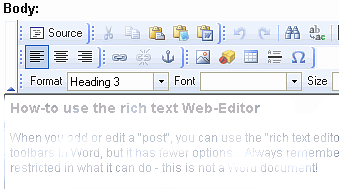
How-to use the rich text Web-Editor
When you add or edit a "post", you can use the "rich text editor" (fckeditor) to add formatting. Using it is similar to the toolbars in Word, but it has fewer options. Always remember, your are editing an HTML document, so the editor is restricted in what it can do - this is not a Word document!
Here are some tips to get you started:
- you can format text using the toolbar, which works similarly to Word;
- "hover" over a tool button for a description of what each button does;
- use the "remove format" eraser tool to get rid of formatting you don't want or want to change;
- if you have privileges, you can insert images into your posts by pressing the "Insert Image" button on the toolbar;
- use the
- show blocks" tool to see how your html is being laid out;
- leave URL's and e-mail addresses as simply plain-text - the site will convert them to links (and hide e-mail addresses from spam-bots in the process!)
- use the "you can "roll up" the toolbar with the little arrow to the bottom-right.
- the "Source" button shows you the HTML code you are actually producing - press it a second time to go back to the "WYSIWYG" editor view.
Submit a Name (Lasqueti Dead)
How-To Submit a Person to the 'Lasqueti Dead' list
Anyone connected to Lasqueti can be remembered and paid tribute by listing them on the Lasqueti Dead or Beloved Dead lists. All persons on these lists are submitted by members of the Lasqueti community. Here's how:
- Log-in (you must be logged in to post to the website)
- Post to Website... Person (from menu in left sidebar)
- Enter a Name for your person - usually this is in the form: Firstname Lastname.
- Select a category (Person is....) - choose the list this person should appear on.
- Optionally, you can upload a photo to be shown on the person's page - ususally a photo of them.
- Enter a Description of the person - you may enter whatever makes sense for your tribute and memory. This might include what and when their relationship was with Lasqueti, and maybe when and where they were born and died.
You can format your story using the simple web editor - see How-To Format Your Post - Press "Submit"
You should see your new page in full. Notice there is an "Edit" tab at the top of the page - you can always return to the page and click on this tab to update or delete your submission. You should also see that this person has been added to the list you chose (e.g., Lasqueti Dead).
Get More
How-to access advanced features
Lasqueti.ca uses a sophisticated access control system to grant privileges to each user. This is the primary reason you need to log in to the site - so you can be granted the right access privileges.
- For example, anyone can read the content on the site, but we only allow "Authenticated Users" to post and edit content. This keeps "spammers" and other nuisance postings off the site. You are automatically Authenticated" when you log in.
The site administrator can change your "role" to grant you additional privileges.
- For example, a "Trusted User" is allowed to upload photos to the photo galleries on the site. It's not that other users are not trustworthy, it's just that the ability to upload an image could potentially be used to deface or damage the site, so this ability is not granted unless requested.
The articles in this How-to will explain how you get access to the features you want....
Articles needed for this How-To:
- Become a "Trusted User"
- Become a site "Contributor"
- Get you own page on lasqueti.ca
How To: Create an Account
Note: This article is about logging it to this website - if you are trying to access the
Lasqueti Wireless Internet Connection, please see lasqueti.ca/services/broadband
Creating an account for lasqueti.ca is easy.
- Go to Create New Account
- Fill out the form by choosing an ID and password
- You will be logged in automatically and your account details will be sent to you via e-mail.
That's it!
Some information of interest:
- Having trouble logging in? See books/how-to/login
- Once you are logged in, you'll see your "Personal Navigation Menu" in the left sidebar. This allows you to quickly access content relevant to you.
- If you are logged in on your home computer - don't log out. The site will "remeber" you for up to a month so you won't need to log in again, even if you close your browser and shut-off your computer!
If you see your "Personal Navigation Menu" in the left sidebar, then you are already logged in. - Please ensure you always log-out from the website (link at bottom of personal menu) when using a public computer. Even if you close the browser and shut-off the computer, your "session" with the website remains active and the next person to use the computer will be able to use your account (and thus modify or delete your content on the site!)
Create a listing for Ride-share Coop
How-To Add yourself to the "Ride-Share Driver" list
The Lasqueti Transport Coop is a ride-share cooperative that supplies rides to those who need them. To become a driver for the Coop, you must meet some basic requirements. Then, simply add an entry to the Ride-share Drivers listing - here's how:
- Log-in (you must be logged in to post to the website)
- Post to Website... Person (from menu in left sidebar)
- Enter your Name - the name you want people to call you when they need a driver - usually your first and/or last name.
- Select "Ride-share Driver" under Person is.... - it is VERY important to choose the right category here or you might end up listed as Lasqueti Dead!!
- Optional, but highly recommended - you can browse and then upload a photo - usually a photo of yourself, but could be of your car, or a small logo or other icon.
-
The Description allows you to add other information to your listing - most importantly your contact info - you may enter whatever makes sense for your listing.
The first 200 characters will be shown in the summary list, so start with your phone number, e-mail, or other contact info. Additionally, you could include hours or days when you are typically available, the type or capacity of your vehicle, or other useful information for those seeking a ride.
You can format your description using the simple web editor - see How-To Format Your Post - Press "Submit"
You should see your new listing in full. Notice there is an "Edit" tab at the top of the page - you can always return to this page and click on this tab to update or delete your listing. You should also see that your listing has been added to the main Ride-share Coop Drivers listing.
Voila!
Post Article on Page
Attach an article with your latest news, poems, or ramblings to your page!
If you maintain a page on the website, you can have a dynaimc article attached to it. Each time you add a new article it automatically replaces the one that was previously displayed on your page. All the articles you write are saved and available in your "blog". For example, you might use the articles to:
- Post latest news or information about your page (e.g., see free store page);
- Post your latest poetry, ramblings, or writing;
- Write a regular "column" that supplements your page.
- (Note: if you want to post photos, it would be better to have a "mini-gallery" on your page.)
This feature needs to be added to your page, so contact the webmaster if you want this capability.
Step-by-Step : Post an Article to your page:
- Log-in to lasqueti.ca (you can only post content if you are logged in)
- Select ->Post to Website... from your personal menu (- see How-To Navigate Site articles).
- select ->Blog entry from the sub-menu
- Enter a meaningful Title for your article - it should be concise but descriptive.
- Optionally, you can add Additional Subjects to the article by simply typing them in (see below)
- Enter the Body of your article - this is the main text of the article.
- Select the page this article is Related to. This is the page where your article will appear. Only pages you "own" will show up in this list - if the list is empty, you don't maintain any pages - that's OK, your article will still appear in your blog. If you want to maintain a page on the site, contact the webmaster.
- Choose "Preview" if you'd like to review how your post will look on the site before submitting it.
Choose "Submit" to post your article to the site.
When you view the article, you'll see that it has "View" and "Edit" tabs. The View tab shows you what others will see when they see your article. The Edit tab allows you to go back and change ANY of the information you entered above, or even delete the article to remove it from the site completely. If you do delete the current article, your previous article will automatically show up on your page again (it always shows the latest article). You can ALWAYS edit your own posts on lasqueti.ca. So relax - mistakes happen, and you can fix them!
Additional Subjects
- The site provides a set of "official" categories for classifying content.
- You can create your own classification categories simply by entering terms in the "Additional Subjects" field.
- Once you have added a new category "term", all content "tagged" with that term can be viewed together simply by clicking on the term wherever it appears.
- For example, if you write articles about the Bird Count, then "tag" those articles with the term "bird count". You could also tag photos or news articles. All of this content will be summarized together automatically under the new "bird count" category. Others can add items to this category simply be tagging their articles or photos as "bird count". Cool eh?
Manage your Market Page
"Market Pages" were created for the Lasqueti Market Association, primarily as an easy way for farms, bakers, and craftspeople to maintain the listings in the Lasqueti Farmer's Market.
A Market Page allows you to maintain a list of produce or products you offer for sale. It is an easy and flexible way to keep your page up-to-date with what you currently have available. If you want to be part of the Farmer's Market and maintain your own Marktet Page, please contact the webmaster.
How-to Maintain your Market Page
Note: you must be logged in to maintain your pages - the website "knows" that you "own" these pages, and so provides all of the editing options that are not visible to other users on the site.
A Market Page has 3 distinct components:
- The Market Page itself - this contains basic information about the farm or producer. It has a web address (URL), which will be something like lasqueti.ca/jewel box farm or lasqueti.ca/wild isle foods
Once this page has been set-up, you should not need to change it often. If you do need to change some of the information on this page, you'll see an "Edit" tab along the top of the page (this is only visible to the "owner" of the page). When you edit your page, you can change the photo and "biography" text that appears in the right sidebar, you can change the "Teaser Image" that shows when a link to your page appears in a list, and you can change the content of the page Body itself.
For more help on using the web editor to format your page, please see How-to: Format your Posts. - A List of Products - your product list is shown at the bottom of your page, and displays an alphabetical listing of all of your "available products". This list of products also shows up in the Farmer's Market. You can manage your list of products using the "Edit Product List" tab available on your Market Page. Here you can set the availability of your products (make sure you press "Update" to save your changes!), and edit or delete products from the list.
- A Set of Product pages - each product in your list actually has its own page. In fact, your product list is actually just a summary of all your product pages. The product page can contain extra details that don't show up in the list. You can Edit an existing product either by visiting its page and selecting the Edit tab, or by visiting your "Edit Product List" tab and selecting the Edit link beside the product. See below for adding a new product.
These 3 components are linked together automatically by the website, so that everything shows up where it should - your farm is listed in the Lasqueti Business Directory under Food lasqueti.ca/marketplace/business/directory, your products appear on the Browse Products page lasqueti.ca/marketplace/market/browse, and you are listed in the Farmer's Market lasqueti.ca/marketplace - you don't need to worry about how to get stuff in the right place, it is all taken care of.
Adding New Products
You can add a new product by visiting your Market Page and selecting the "Add Product" tab, or by selecting "Post to Website... Product" from your personal menu (in the left sidebar).
Every product must have a Title - this is required. The title is what shows up in the product lists, so should describe the basic product. E.g., "Cucumbers", or "Rye Bread", or "Dreamcatchers". The only other two fields that you must always fill out are the Lasqueti Market category and the "This is related to..." page selection:
Important: In order to get all the "automated linking" stuff to happen, you need to ensure that you select your farm in TWO places on the Add Product form:
- At the top of the form you'll see a drop-down selector labelled "Lasqueti Market" - you must select your farm here so that your products show up in the Farmer's Market.
- Near the bottom of the form is a drop-down box labelled "This is related to..." - also select your farm here - this attaches the product to your Market Page.
Ideally, this would be automated or at least require only one select, but I couldn't find an easy way to make it all work - I may be able to streamline this part of the interface in future.
All the other fields are optional - use whichever ones you feel are suitable for your purposes:
- Photo - choose Browse to select an image from your PC, then Upload to upload it to your page - see How-to: Upload Photos Step 7 for detailed instructions. The site will automatically re-size photos, but if it is a very large file you may need to scale it as there is a maximum upload size. A tiny copy of the photo will show up in the product lists, and the full-sized image will appear on the product page.
- Summary - the text you enter here appears beside the product title in lists, so keep it short! This is intended to give the variety, or other pertinent details. E.g., "Long English", or "Organic", or "variety of sizes"
- Full Description - add all the details you want! This does not show up in the lists, but does show on the product page if someone clicks on the product link to find out more. Go nuts.
- Price - totally optional. Make sure you give the units, e.g., $1.50 per lb, or $5.00 each, or $3 per bunch. The price only shows up on your Market Page - never in the Farmer's Market - this is to avoid a "race to the bottom". You can change the price any time, just like anything else, by simply editing the product page.
- Availability - only "Available" products appear in the lists, so select "Not Available" if you want the remove a product from your product list. This allows you to maintain a stock of products, but only show a sub-set of them at any given time, obviously the ones you currently have available. You can most easily manage product availablity on the "Edit Product List" tab on your Market Page - here your "Available" products are listed first, followed by the "Not Available" ones. You can set each products availability right on this page without having to go in and edit each product separately - but don't forget to press the Update button to save your changes!
That's it. There is a fair bit to learn here, but once you've done it a couple times, it should be an easy process. If it's not, or if you need some extra help, please feel free to contact the webmaster.
Use the Lasqueti E-mail List
Subscribing to the list
To subscribe to the Lasqueti E-mail List, you must have a "connection" to Lasqueti and its community. Simply visit: https://lists.lasqueti.ca
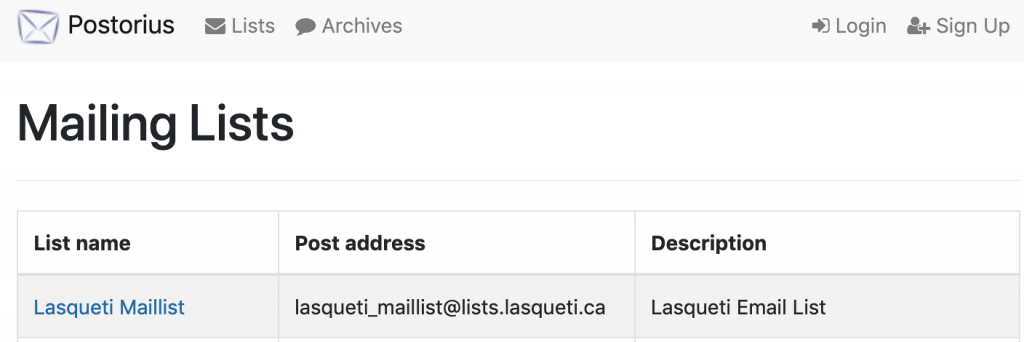
- Select Lasqueti Maillist.
- Fill out the Subscription Form - it looks like this:
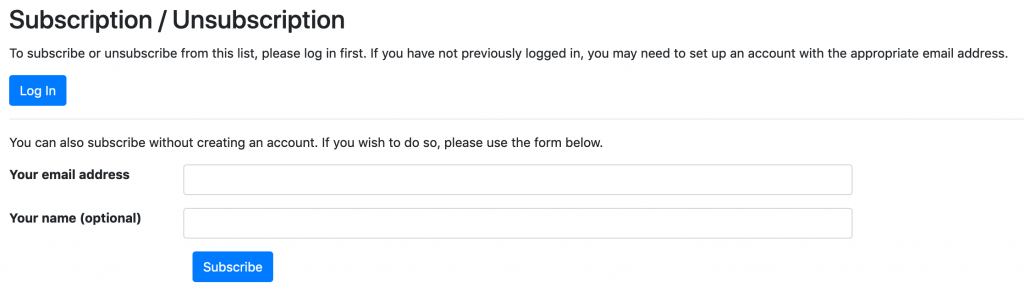
I strongly recommend that you "Sign Up" for an account first (link at top-right), and then login and subscribe to the email list, but you can use this form to subscribe without an account.
You will need an account to manage your subscription preferences, but the account can be created later using the same email address.
Sending Messages to the List
The Lasqueti e-mail list is semi-automated, but every message is "moderated" by one of several community volunteers before being sent out to you. The list moderators ensure that spam is removed, and that submissions don't include long "reply quotes" or "signatures", or other irrelevant and distracting stuff (see Moderatrion Guidelines for details).
Please get time-sensitive postings sent in as early as possible - certainly by early evening - or your message may languish "in the queue" for a day. You can (and should) post event notices, important announcements, or classified ads on the Lasqueti web site (see http://lasqueti.ca/books/how-to/create-content ) - such posts are automatically cross-posted to the e-mail list. This allows anyone who checks the website, including those who do not subscribe to the e-mail list, to learn about your post right away.
If something very important, and time-sensitive, and comes up at the last moment, you could consider calling one of the moderators, wake them up and ask them to get out of bed, turn on their computer, and approve your posting. It had better be important and have just come up, and not be late because you didn't get around to it earlier. And should be followed-up with a nice loaf of bread, a chocolate cake, or other offering of appeasement ;-)
Changing Your Subscription Preferences
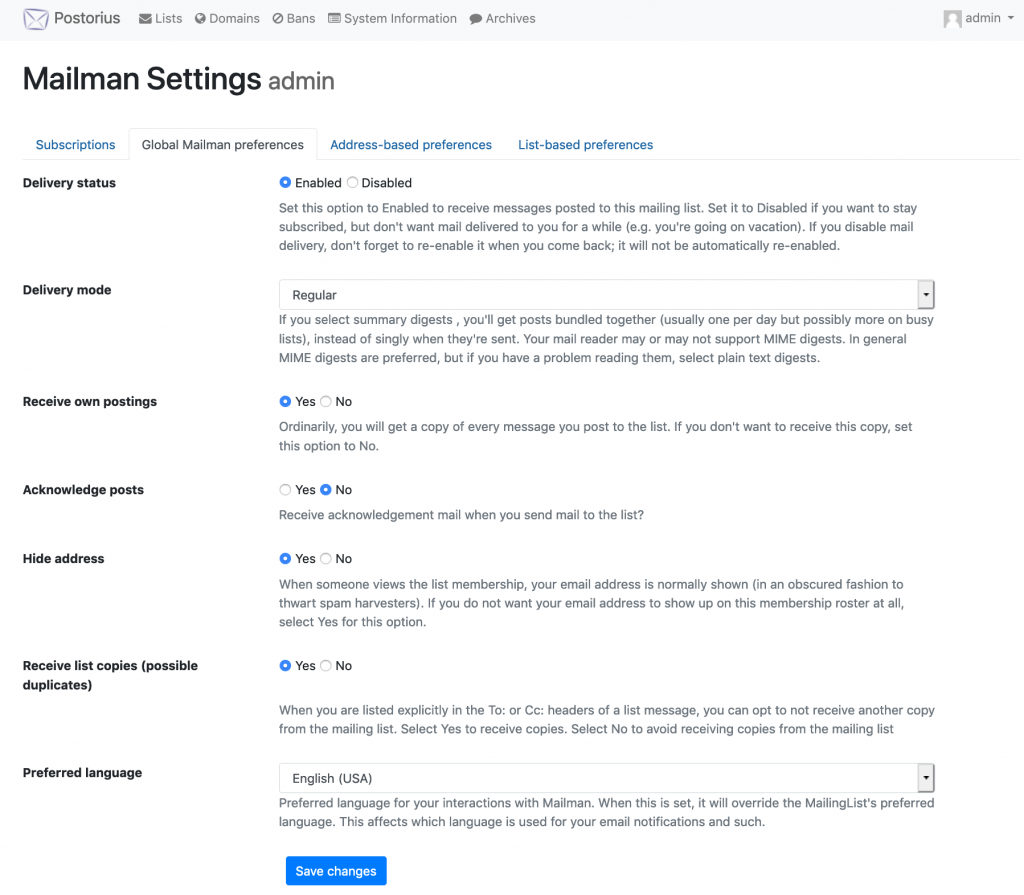
 You will need to "Sign Up" for an account https://lists.lasqueti.ca to manage your subscription preferences. Once logged in, use the drop-down menu under your name in top-right corner too access your "Mailman settings". Here you can manage your subscriptions with "Global preferences" (defaults that apply to all your list subscriptions), or "List-based Preferences" to override your default preference for individual subscriptions.
The "Account" settings on this same menu allows up to update your personal profile and change your password.
The screenshot below shows the preferences you can configure for your list subscription(s).
Filter messages you receive from the email list
The purpose of the Lasqueti email list is simple and well captured by our motto:
"Together we can talk and solve our problems."
To achieve this simple goal is a significant challenge. It requires carefully balancing free, open speech with the need to create an inclusive space where everyone feels welcome to participate. This is the fine line, drawn and walked by your list moderation team.
This "how-to" shows you a couple ways to gain more control over where this balance lies -- to allow you to take control over what you receive in your inbox from the mail list.
Default Settings
By default, the email list sends you all messages approved by the list moderators. If you are happy receiving all messages, you need take no action and can stop reading now.
Filtering out Messages
There are 2 ways to filter messages out of your inbox:
- Mail client "Rules" or "Filters" (client-side)
- Mailman "Topics" (server-side)
In both cases you MUST configure your subscription settings to receive individual messages. The daily digest is compiled once per day and sent out to all subscribers who choose to receive the list as a digest -- there is no way to filter out individual messages from a digest. So...
Step 1: "Set Digest Mode" : "Off"
- edit your email list subscription options
- choose "Off" for the "Set Digest Mode" option
- save
 Now you will receive each message as it is approved by the list moderators. Next, choose a method to filter those incominig messages.
Filtering with Mail Client Rules
Your mail client (the program you use to check email) likely has a powerful tool that allows you to filter and sort email as it arrives in your inbox. This is the ideal solution as it provides you with the most control and flexibility to filter on exactly the criteria important to you.
The subject line of all email from the list starts with "[Lasqueti Email List]" -- this makes a good criteria to start defining your filter. Then add additional criteria to target the messages you want to filter out.
This applies to most desktop / laptop mail clients (e.g., Mac Mail, Thunderbird, Outlook, and the Gmail Webmail client). Generally, mobile mail clients don't support this feature, so if you use an phone or tablet to check your email, you probably won't find this option.
We hope to publish some guides and/or hold some workshops to help people with this, but given the range of email clients, that's a big job. For now, try a Google search for your specific mail client, like " Mac Mail rule filter tutorial ", and you should find lots of helpful tutorials to get you started.
Filtering with Mailman Topics
Your list moderation team maintains a list of "special topics", typically hot-button topics that some readers find distressing, hurtful, or offensive. We are open to suggestions, but will be reluctant to create topics unless we receive multiple requests and there is an obvious social benefit to providing an easy way for folks to filter such message out. Currently we support these topics:
- Covid-19 related discussion / debate / opinion
- Vaccine related discussion / debate / opinion
Instructions for enabling Mailman Topic filtering
- edit your email list subscription options
- scroll down to the bottom of the options, look for the 2 topic options shown below
- check "Enable Topic Filtering" (as shown) (and any Topics you do wish to receive)
- choose "Yes" to receive messages that don't match any Topic filters (i.e., all other messages)
- Save

With the options shown above, you will receive all list messages, as usual, EXCEPT for those tagged as "covid" or "vaccine" related. These messages will not be sent to you.
It is very important to select "Yes" to "receive messages that do not match any topic filter". Once you enable topic filtering, you won't receive any list messages otherwise!
Moderate the Lasqueti e-mail list
The Lasqueti E-mail List allows people with a Lasqueti connection to exchange information important to Lasquetians. Messages sent to the list are moderated to maintain the list’s nature, purpose, and usefulness.
This "how-to" provides technical documentation for moderators on how to use the Mailman moderation queue. Please see the Moderation Guidelines for information about how moderators should make decisions about messages sent to the list.
Access to the Moderation Queue
The list's moderation queue is maintained on a simple website, which shows all messages that are awaiting moderation.
You will need to "Sign Up" for an account at: https://lists.lasqueti.ca
Then, on lists where you have moderator role, this gives you access to the moderation queue:
https://lists.lasqueti.ca/postorius/lists/lasqueti_maillist.lists.lasqueti.ca/held_messages
Email Notification
As a moderator, you will receive an e-mail notification from the system whenever a new request to the list requires moderation. The notification contains a copy of the message, just as it will appear on the list, so you can review it before proceeding to the moderation queue.
Moderators also receive a daily notification if there are outstanding tasks in the moderation queue for that day.
Moderation Tasks
There are two types of request that may require a moderator's approval:
- Subscription Requests: when a new user subscribes to the list, this request goes into the "Subscription Requests" queue. The moderator should verify that the request comes from someone with a "connection to Lasqueti", as defined in the Moderation Guidelines, before approving the subscription.
- Held Messages: when a non-member or moderated member sends a message to the list, it goes into the "Held Messages" queue. The moderator should verify that the message conforms to the Moderation Guidelines before approving the message.
Using the Moderation Queue
Each moderation task held in the queue is listed with a number of "actions", with the most commonly used actions being: "Approve", "Reject", and "Discard"
To moderate a set of requests, tick checkbox beside each message to process, and press button with desired action. If you want to review the message itself, or supply a detailed rejection message, you can click the message link to process the message individually.
For a given request, the moderator may choose to:
- Accept / Approve : this action accepts the message for publication on the list, or approves the user to be a list recipient. Once completed, you can't undo this action.
- Reject : this action sends a message back to the person who made the request, informing them that their request was rejected. This is a serious action, and should not be taken lightly - the moderator should always provide a reason why a request was rejected.
- Discard : this action simply discards the request, without informing anyone. This action should be used to discard spam or duplicate messages from the list.
Protocols for Moderating
- Generally, the job of moderating is shared by several people. So, by the time you get to the moderation queue, you may find the task has already been handled by another moderator.
- List moderators may (and should) simply Discard messages that are obvious spam or duplicates.
- List moderators should never user their position to censure opinion or block legitimate access to the list, and should always choose neutral, non-confrontational language when responding the moderation issues.
- List moderators should always provide a reason if they Reject a message sent to the list (see below).
- If you are unsure about what action to take with a request, simply leave the message on the queue, where it can be dealt with later (i.e., perhaps after obtaining additional information or conferring with other moderators).
- Please see the Moderation Guidelines for more complete information about moderating protocols and procedures. There is also some sample text for common "rejection letters".
Dealing with Posts that need to be edited
Occasionally a post will need to be edited, usually because it's subject line is missing or meaningless, or because it contains a large "reply quote" or long-winded "signature", or because the contents are unacceptable in some way. Moderators are unable to make any edits - they can only accept or reject messages.
- If a message requires some editing to be acceptable for publication, you will Reject the message with an explanation about what needs to change to make the message acceptable for publication. The system will send out a "rejection letter" to the user, containing details about the message in question along with your reason for rejecting, and with this line appended: "Any questions or comments should be directed to the list administrator at: lasqueti_maillist-owner [at] lists [dot] lasqueti [dot] ca."
- Be sure that your explanation invites the user to make the requested edits and to re-submit their message - these are important instructions to always include.
- If a user disagrees with an editing request, and wants their message published "as-is", then we have a very rare event, and the moderators will need to decide what to do as a group.
Tips for Moderators
- Refer users to the Moderation Guidelines if they want to know what criteria you are using to make decisions. Refer them to the list administrator if they are giving you grief.
- Use text from the sample rejection letters to keep things consistent, and ensure your language and tone are neutral.
- If you use the Firefox browser, you can "pin" the moderation queue page as a permanent tab on your browser - this is very handy. Simply browse to the moderation queue page, right-click on the tab, and select "pin as app tab" - now this tab will always be there, whenever you open your browser.
| Attachment | Size |
|---|---|
| Moderation Guidelines (pdf) | 133.43 KB |
Sample "rejection letters"
It is important that users receive a clear reason why their message is being rejected. This "rejection letter" should always be in neutral language to avoid insulting or antagonizing anyone. If you have suggestions or other "common" rejections, please add them as a comment below...
Always Offer to Publish Edited Post
It is important that the moderator always offer to publish the message if the user edits and re-sends it. Thus, all "rejections letters" should include a phrase like:
Please edit and re-submit your message so I can forward it to the list readers. We are not in any way trying to censor your opinion, we are simply trying to ensure the list remains an accessible, useful source of quality information for its subscribers.
Best Practices and Guidelines can be viewed at: http://lists.lasqueti.ca
Common Rejection Reasons
Missing or Irrelevant Subject Line
Your message was missing a meaningful subject line. The e-mail subject is used by the mail list software to create the "table of contents" for the daily digest. Many readers simply scan this topic list, so your message may go unread without a meaningful subject. Please re-send your message with the "Subject" field on the e-mail filled with a meaningful topic for your post.
Irrelevant "Reply Quotes" or Long "signatures"
Your message was followed by a long, irrelevant "reply quote" or "signature". We don't have the ability to edit messages sent to the list, and so need to request that you re-send this message without the block of irrelevant text. Feedback from list subscribers strongly indicates that such blocks make the list confusing and hard to read, so your assistance here is greatly appreciated.
Long-winded Message or Text Pasted from Online Article
We are reluctant to send this message out as-is - it is very long, and so likely to swamp other shorter notices in the digest. We hope you would consider posting the entire article on lasqueti.ca (say as a blog post) and then send a summary with a link to the article to the list? If you don't have an account yet, you can register for free here: http://lasqueti.ca/user/register
Sorry for the hassle, but feedback from list subscribers indicates that long articles cause a "trash button" response. We are not attempting to censor anything here... just trying to strike a balance.
Inappropriate Language
We have a feeling that some list subscribers may find this post overly aggressive / rude. Our goal is not to censor your opinion, but we do need to consider that list members may unsubscribe if they find the tone on the list offensive. Since reducing the list audience diminishes its usefulness, we need to balance these two concerns. Please consider re-wording your message using more neutral language, and re-submit it so we can send it out to the list.
Potentially Defamatory Remarks
Your message was flagged because we felt it could be considered defamatory. We define defamatory as "Any disparaging statement made by one person about another - a statement that makes a claim, expressly stated or implied to be factual, that may give an individual or group a negative image (see http://en.wikipedia.org/wiki/Slander_and_libel). Please understand that we are not lawyers, and cannot make any fine distinctions on these matters. We have an obligation to the list readers to block anything that could be considered defamatory, and err on the side of caution in this respect. Please consider re-wording your message to avoid making unproven allegations or specious claims, and re-submit it so we can send it out to the list.
Request for "Lasqueti Connection"
The Lasqueti e-mail list is restricted to folks with a Lasqueti connection, as a basic safeguard for those who send messages to the list. I'm sorry we didn't recognize your name and didn't find you in the phone book - would you be so kind as to provide us with a Lasqueti connection so we can approve your subscription request?
How To: Log in
Note: This article is about logging it to this website - if you are trying to access the
Lasqueti Wireless Internet Connection, please see lasqueti.ca/services/broadband
-> Wondering? Why might you want to log-in?
-> Need an account? How To: Create an Account.
-> How do you know if you are logged in? If there is a menu in the left sidebar with your user name on it, you are logged in. If there is a "Login" tab in the top-right corner, you are not logged in - mouse-over "Login" to expand login box.
-> Getting wierd behaviour? Please update your browser to the latest version, or.... get FireFox : it's just better. Try the advice below, then Contact the webmaster - please report your browser version and describe the issue - thanks!!! You're help finding bugs is much appreciated.
-> Got an account and having trouble? Try ...
-
You must enable cookies
Lasqueti.ca remembers you by placing a small "cookie" on your computer with a unique code use to ensure security during your session. Make sure your browser will allow cookies from lasqueti.ca
FireFox: Tools...Options...Privacy - "Accept Cookies from Sites" (or at least allow cookies from lasqueti.ca if you want them blocked otherwise);
IE: Tools... Internet Options... Privacy - Medium is a good setting here; or add lasqueti.ca as a trusted site under Security. Of course, you can use the site without, but no cookie, no login. -
Try clearing your browsers cache.
This is always the first thing to try if your browser's not doing what you expect.
FireFox this is under Tools...Clear Private Data. Clear at least the cache, cookies, and sessions.
IE, try Tools...Internet Options... Delete Cookies and Delete Files. -
Refresh the page.
You can tell your browser to "start over" - this often clears up problems.
FireFox this is under View...Reload.
IE, try View...Refresh. -
Enable JavaScript in your browser.
Most or all features of the site "degrade gracefully" and the site can be used without. However, JavaScript provides all of the "client-side" usability improvements that make a better browsing experience - I'd recommend you enable it, there's no real reason not to.
FireFox: Tools...Options...Content... "Enable JavaScript";
IE: add lasqueti.ca to your "trusted zone"?
Still can't get in? Please use the "Contact" link on the Quick Links menu to contact webmaster - carefully describe the problem you are having.
Use LIAS Wireless
LIAS is a volunteer based society, created by this community, run by this community, to serve this community, and it needs this community’s support and cooperation to continue offering affordable, quality service.
LIAS operates primarily on volunteer labour. The concept is that management works to maintain the integrity of the system and members take care of their own connections and installations.
These articles are intended to help you help us maintain the LIAS Wireless Internet Service.
Check Your Wireless Usage
Step 1: Choose the RIGHT plan!
You need to choose a wireless internet service plan that will cover your needs to avoid paying expensive “overage” charges, assessed if you exceed your plan's monthly limit. Check which plan you are currently subscribed to and paying for, and consider moving to a higher usage plan if you will be using the Internet more heavily.
For current plans, rates, and bandwidth limits, please see: http://lasqueti.ca/services/broadband#rates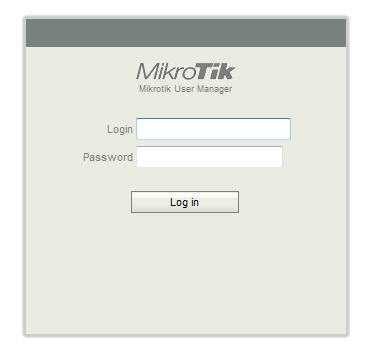
Step2: Check your Internet usage
Usage can vary widely, depending on the amount of data you upload or download. You can log into the Mikrotik system at http://aux.lsqt.net/user/fw at any time to review your data use.
If you don’t already have your login and password, email service [at] lias [dot] ca or phone 855 SOS LIAS, (855 767 5427)
If your login information is not accepted then your info is incorrect or the user manager is down* and you will need to try again later.
Step3: Understanding your Interent Usage
LIAS measures your usage in Megabytes and Gigabytes. Your upload and download usage is shown on the Mikrotik user manag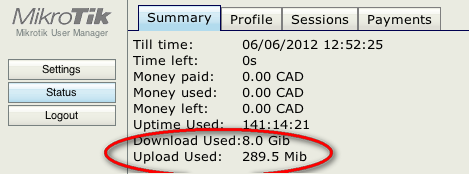 er page.
Mb, MiB, MB, Mbps = megabyte
Gb, GiB, GB = gigabyte
There are 1024 Mb in 1 Gb.
* The Mikrotik UserManager has been known to stop working if you log in with Chrome or Firefox. This can get a bit confusing. In order to stop the loop, it is necessary to have the cursor pointed at the ‘stop page loading x’ or the ‘browser window x’, ready to click, and then hit the return/enter button to close the error dialog box followed by quickly clicking the x to either stop the page loading or close the browser window. Often it is possible to use the ‘activity monitor’ in OS X or the ‘task manager’ in Windows to close the browser and stop the loop.
Troubleshoot your Wireless Intenet Service
Internet not working?
Step1. Turn your computer, router and aerial off. Then turn the aerial, router and computer back on, in that order. Wait for a count of 60 between turning each on.
Step 2. If still out of service contact a neighbour on the same access point to see if others are having problems.
Step 3. If more than one member is without connection then one of them should call the tech line and report the problem with pertinent details. 1.855.SOS.LIAS or 855.767.5427
Step 4. If the problem is at the member’s site then they will need to arrange to have it fixed themselves.
If you want an installer or the tech assistant or the network manager to come to your home then there is a $25.00 an hour charge with a $50.00 minimum. Call 1 855 767 5427, or if you can email, service [at] lias [dot] ca
Maintain a LIAS Access Point
 Login
Login
You will log in to the app here:
(tip: bookmark that page)
Use your lasquet.ca login and password.
- If you don’t have a lasqueti.ca account, create one.
- or if you have forgotten your password, request a new one.
Note: the AP app is NOT accessed via lasqueti.ca, you must login to the app here: http://ap.lias.ca/
Permissions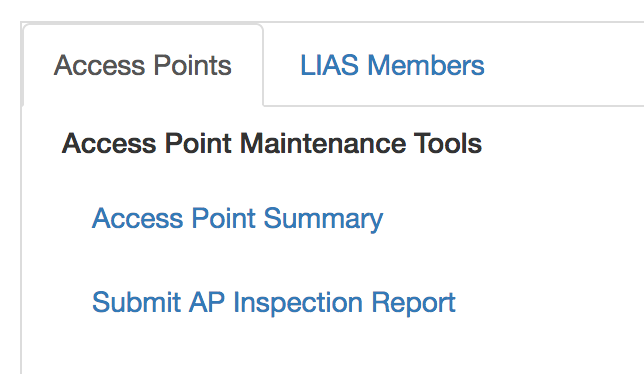
To help us ensure the integrity (and privacy) of the data stored in the AP app, each user is given a fairly restrictive set of permissions (e.g., LIAS directors, staff, volunteers, and members have different permissions and capabilities on the site).
As a Maintainer, you should be able view the Access Point Summary, and submit AP Inspection Reports:
AP Status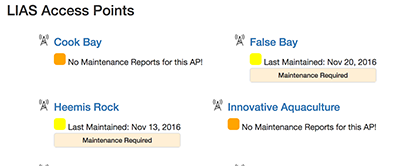
In the Access Point Summary, you can get a quick overview of the status of each AP -- when was the last time it was maintained, are there any outstanding maintenance items that need attention, etc.
You can click on any AP in the summary to view detailed information about that AP, including a list of members connected to the AP.
For AP's with remote monitoring systems, you will also get a summary of the live voltage and a link to access the remote monitoring system to view charging history.
Submit an AP Inspection Report
The heart of the system are the inspection reports made by volunteer AP Maintainers when they visit an AP site.
From the "Access Points" menu, choose "Submit AP Inspection Report".
 You will be presented with a form to record details about your inspection, to make note of any repairs, maintenance, or supplies required at the AP, and to notify LIAS tech staff if there is an issue that needs immediate attention. You can attach one or more images to your report, if a photograph or diagram is required.
If you have a mobile phone or tablet, you can enter the form data directly while on-site. Otherwise, you could print a paper copy of the form (download printable PDF here) to fill-out on-site, and then enter the report information when you are back to your computer.
 Make a Request / Track a Job
Each AP maintains a 'Job List' for tracking on-going projects, equipment requests, etc. You'll find the job list at the bottom of the AP page, and there you click on any job to see the current status or add a new comment. You can also make a request or suggestion by adding a new job for the AP.
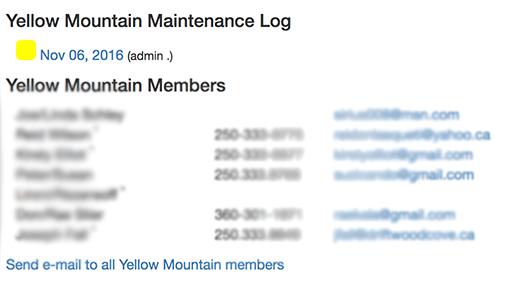 Notify AP Members
If the Access Point is likely to be powered down during maintenance or you need to contact all members connecting to a specific AP, a link on the AP page allows you to send an e-mail to all the AP users:
Feedback Welcome
The LIAS AP app is a custom-built piece of software, designed to improve communications between the board, staff, volunteers, and members. If you have questions about how it works, or suggestions for new features or ways in which it could be improved to serve your needs better, please contact us -- your feedback is very much appreciated.
Use lasqueti.ca e-mail system
LIAS provides an e-mail service for it's members on the lasqueti.ca domain. Please contact LIAS for more information about obtaining a lasqueti.ca e-mail account.
The document attached below provides a general overview of how the e-mail system works, which will allow you to be more effective when configuring and using your e-mail client program.
Below are the basic configuration instructions for using the LIAS lasqueti.ca e-mail system:
User Name / Mailbox / Login Id vs. e-mail address:
- Your e-mail address is something like: trematon [at] lasqueti [dot] ca
This is the address others will use to send email to you - it is your public address
- You Mailbox (also called your user name or login id) is something like: trematon_lasqueti_ca
Notice the underscores!! It is similar, but not the same as your email address.
This is your private user name on lasqueti.ca's mail server - it is used only by you, to "authenticate", or log in (so your can retrieve and send mail using your personal mailbox on our mail servers).
Instructions for changing your password:
You can change your e-mail password on the web at: https://panel.webfaction.com/change_mail_password/create
Supply your mailbox name (this is your username / login id, NOT your e-mail address) and password, and select a new p/w you can remember.
Instructions for using webmail:
You can use webmail to check and send mail when away from your home computer:
- visit: http://webmail.lasqueti.ca
- Login using your mailbox name and p/w.
- Be sure configure your "identity" the first time you log in to webmail
For complete documentation on using the webmail service, see:
http://docs.webfaction.com/user-guide/email.html#webmail
Instructions for configuring e-mail client:
Your "email client" is the program used to read and send e-mail. On Mac, this is called "Mail"; on Windows, I recommend you use Thunderbird (see notes about Outlook below). Please see the attached document below if you want a better understanding of what these terms mean and how the e-mail system works.
Use your mail client program to create an "account" for your new e-mail address - you will need your
- e-mail address (e.g., trematon [at] lasqueti [dot] ca)
- mailbox name (may be called username or login id; e.g., tremator_lasqueti_ca), and
- p/w (your e-mail password - same one as used to access webmail above)
in addition to the information below to specify your incoming and outgoing mail servers.
Incoming Mail Server (POP) : mail.webfaction.com
(port 110 for normal access, 995 for SSL)
*** The POP server requires authentication using your user name and p/w
- Outgoing Mail Server (SMTP): I recommend configuring 2 outgoing servers (if possible) - use the Webfaction server as the default.
-- WEBFACTION: smtp.webfaction.com
(port 465 for SSL access - recommended)
Authentication: "Use user name and password" (mailbox name / password as above)
When you send or receive e-mail the first time, your mail client will ask for you p/w if there was not a place to enter it in the account configuration screen.
For complete documentation, including step-by-step tutorial on configuring your mail client, please see:
MAC users: https://docs.webfaction.com/user-guide/email_clients/osx.html
WINDOWS users: https://docs.webfaction.com/user-guide/email_clients/windows.html
GMAIL / Outlook users: https://docs.webfaction.com/user-guide/email_clients/web.html
Mobile phone / tablet users: https://docs.webfaction.com/user-guide/email_clients/mobile.html
Note to Windows Users: Don't use Outlook or Outlook Express!!!!
This is based on years of experience with this tool and the havoc it can create. Most e-mail viruses target Outlook because of its wide spread use and Microsoft's notorious security lapses.
I ***highly*** recommend that you select a different e-mail client. I have used Thunderbird ( http://www.mozilla.com/thunderbird/ )- it is open-source, freely available, popular, easy to use, well tested, and has good security. I have been quite happy with it and personally I think it is a better designed piece of software.
I needed to say that, but if you must go on using Outlook, I promise not to hold it against you ;-)
| Attachment | Size |
|---|---|
| How E-mail Works (pdf) | 145.19 KB |